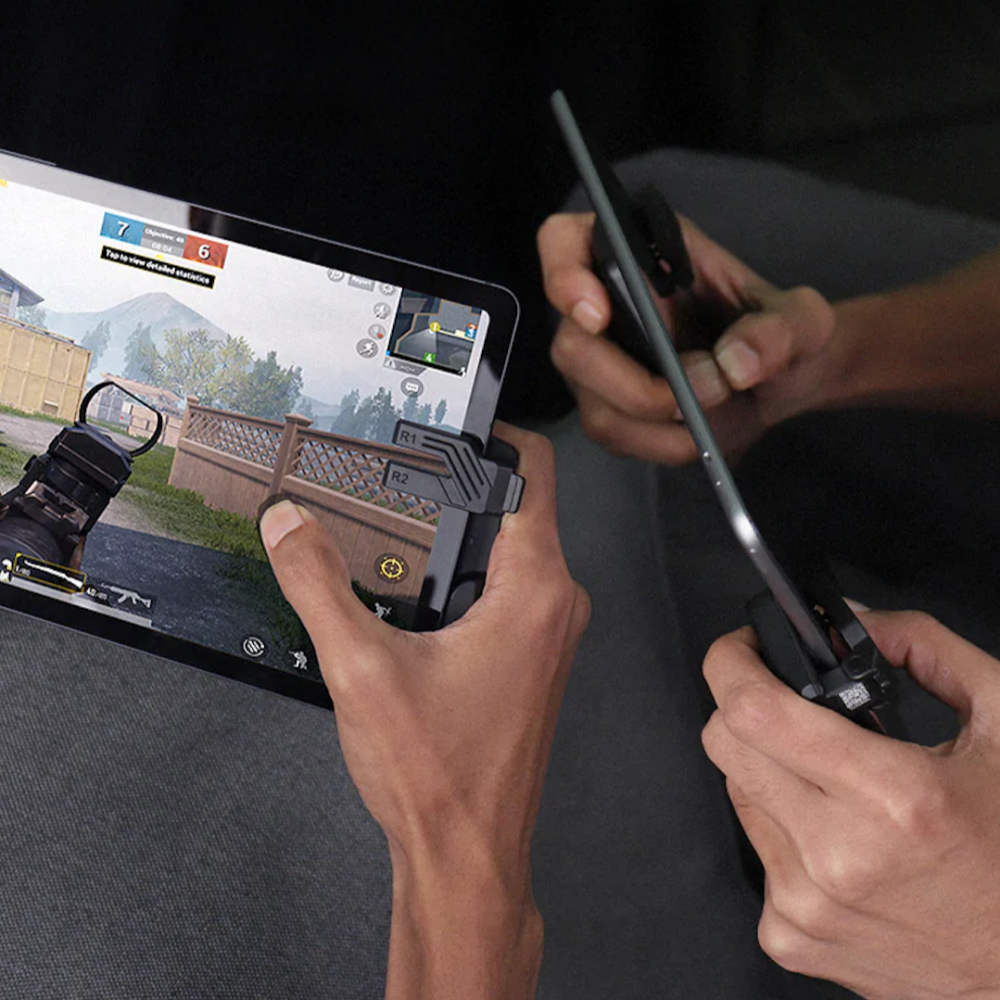
General settings

Preparing GAmesir F7 controller

How do I adjust the settings of the Gamer f7 controller 🎮


First : Fix the stickers on the back of the iPad to securely fix the buttons, then wipe the buttons with a wet tissue for a better fixation

Put the buttons in the correct position on the screen and press them until they are fixed on the back of the iPad.


Second : Restart the iPad screen without lifting the buttons on the iPad screen. If you raise it, you will need to restart the screen again.

Third : enjoy 😉

ـــــــــــــــــــــــــــــــــــــــــــــــــــــــــــــــــــــــــــــــــــــــــــــــــــــــــــــــــــــــــــــــــــــــــــــــــــــــــــــــــــــــــــــــــــ

Determine the appropriate mod 🕹🕹

The f7 buttons have more than one mode that can be switched between by pressing the turbo button

Red mode => 16 fps

Red mode => 12 rounds per second

Fast green mode => shots per second

The only green mod => continuous divorce


F7 reset to factory settings

To reset the buttons to factory settings, press the three buttons together until a green light turns on, then raise your hand directly

If the light is red, repeat the previous steps, and the light will be green, meaning that the settings have been reset


ـــــــــــــــــــــــــــــــــــــــــــــــــــــــــــــــــــــــــــــــــــــــــــــــــــــــــــــــــــــــــــــــــــــــــــــــــــــــــــــــــــــــــــــــــــ

Record clicks 📹

You can register your custom clicks through the following steps

Hold the turbo button until the red light comes on

Then start recording clicks. required by pressing the R1 button

Hold for 7 seconds, then press the turbo button once

Then the recording will have been saved in the only green mode



Preparing GAmesir F7 controller

Related Articles

How to know your iPad model?
28 August 2025
محمد

How to know your iPad model?

How to Easily Identify Your iPad Model?

If you own an iPad and want to know its model, release year, or compatible accessories, it’s much easier than you think!

All you need is the model number found on the back of your device, written in a format like: A2432.


Step by Step Guide:

  1. Flip your iPad and look for the small number printed on the back next to the word Model.
  2. Enter this number on ipad.prem-box.com.
  3. Within seconds, you’ll see all the details about your device:
  • iPad model (e.g., iPad Pro or iPad Air).
  • Release year.
  • Compatible accessories (keyboard, protective case, headphones, and more).

Why Should You Know Your iPad Model?

  • To make sure you buy the right accessories for your device.
  • To check if your iPad supports the latest updates and software.
  • To avoid mistakes when purchasing incompatible products.

Conclusion

No need to be confused when shopping for a new keyboard or case. Simply visit ipad.prem-box.com, enter the model number from the back of your iPad, and get all the details instantly.


Read More
Why Are Phone and iPad Coolers So Important?
28 August 2025
تركي

Why Are Phone and iPad Coolers So Important?

مع ارتفاع حرارة المعالج عند تشغيل الألعاب أو التطبيقات الثقيلة أو التصوير الفيديو، قد ينخفض الأداء وتستهلك البطارية بسرعة. لذا، يأتي دور مبردات الجوال والآيباد في:

  • الحفاظ على درجات الحرارة المثالية.
  • تأخير استنزاف البطارية.
  • الحفاظ على سرعة وأداء الجهاز لفترة أطول.
  • تقليل مخاطر الاهتزاز الحراري وتأثيره على مكونات الجهاز.


كما ان المبرد له دور كبير في تقليل التقطيع او تاخير الاستجابه او تاخير الرسومات و اتصال الانترنت ايضا حيث ان الحراره العاليه تؤثر على اداء المعالج وينخفض اداءه بالاضافة لاستهلاك العمر الافتراضي للجهاز سواء كان الايباد او تابلت رد ماجيك .


اشهر المبردات

Premix Magnetic Cooler B10

  • تقنية تبريد مائي + تثبيت مغناطيسي (MagSafe).
  • أفضل خيار عام 2025 لأجهزة الآيفون والأندرويد.
  • لايناسب اجهزة iPad الكبيرة.

رابط الشراء


Black Shark Pro 4 Fan Cooler

  • المبرد الاقوى على الاطلاق حتى 2025
  • تطبيق للتحكم من الجوال و الايباد
  • تثبيت مغناطيسي او عبر القطع المرفقه

رابط الشراء


Premix B9X iPad Magnetic Cooling Fan

  • مزوّد بشاشة تعرض درجة الحرارة في الوقت الفعلي.
  • متوافق مع اجهزة الايباد و التابلت
  • مثالي لأجهزة iPad المتوسطة إلى الكبيرة.

رابط الشراء


FlyDigi B8X / B7X (للجوال)

  • أكثر المبردات شهره
  • يتميز بقوته وادائه العالي .
  • يعيبه ان بعض الاوقات يتعرض للاعطال بشكل سريع .
  • متوافق مع اجهزة الجوال

رابط الشراء


Black Shark FunCooler Series

  • FunCooler 5: تقنية تبريد Peltier تخفض درجة الحرارة حتى 0 مئوية.
  • FunCooler 2 Pro: تبريد مائي سريع، يحافظ على أداء رام الجهاز.


إذا كنت تبحث عن تبريد فعّال لحماية الآيباد أو الجوال أو الحفاظ على أداء جهازك في الألعاب، ستجد خيارات متعدده في قسم ملحقات الالعاب مصممة لتلبية احتياجاتك. سواء كان الأداء والتصميم أو التوافق مع مختلف الأجهزة، تجد الخيار الأمثل لديك بين هذه الموديلات.

Read More
تحديث كاميرات داش كام 70mai
14 July 2024
Ameen

تحديث كاميرات داش كام 70mai


  • لماذا تظهر الأعطال في كاميرات داش كام 70mai؟

تتعرض بعض الإصدارات لبعض الأعطال عند تثبيت تحديث لم يتم حل بعض المشاكل فيه ، حيث تقوم الكاميرا بتنزيل وتثبيت التحديث الأخير بمجرد اتصال الكاميرا بجهاز الجوال.


  • أبرز الأعطال الشائعة بعد التحديث:
  1. توقف الكاميرا على شعار التشغيل 70mai.
  2. توقف أزرار الكاميرا عن الاستجابة.
  3. فشل التشغيل وتوقف الكاميرا بشكل مستمر ومتواصل.
  4. طلب إعادة ضبط الإعدادات في كل مرة بعد تشغيل الكاميرا.


  • كيف يمكنني إصلاح كاميرا الداش كام؟

في البداية تأكد أنك تستخدم ذاكرة متوافقة مع نوع الكاميرا الخاص بك مثل الموضحة أدناه.


  • بعد ذلك يمكنك تثبيت تحديث الكاميرا باتباع الخطوات التالية:
  1. قم بفصل كابل الكهرباء عن الداش كام.
  2. قم بإزالة الذاكرة وتوصيلها في الكمبيوتر أو اللابتوب.
  3. قم بتنزيل مجلد التحديث حسب نوع الداش كام الخاص بك من الاسفل .
  4. ستجد داخل المجلد ملفين انسخهما الى الذاكرة دون وضعها داخل أي ملف.
  5. لا تحذف أو تقوم بتعديل أي ملفات أخرى في الذاكرة.
  6. اعد الذاكره للداش كام ثم قم بتوصيل كيبل الكهرباء وستبدأ التحديث تلقائياً .


تحميل ملفات التحديث

داش كام A810 أضغط هنا


داش كام A800 أضغط هنا


داش كام A500 أضغط هنا


داش كام A400 أضغط هنا


داش كام A200 أضغط هنا


Read More